

HDR brightness enhancement
Full-screen HDR rendering that unlocks extra OLED luminance headroom. Works with any app and any window - your workflow stays the same.
- Outdoor / bright-room readability
- Toggle on-demand
- Designed for portable productivity

Industry-first HDR brightness enhancement unlocking your OLED's hidden potential.
Convert your entire desktop from SDR to true HDR in real-time, so your OLED can use its full luminance and contrast headroom.
Work in blazing sun or pitch dark. Keep text, terminals, and UI readable without washing out your workflow.
Problem: ambient light collapses contrast
Goal: preserve clarity and readability with HDR selective boost on lighter pixels
Result: usable outdoors and in bright roomsProblem: full-screen glow in a dark room
Goal: keep text legible at lower intensity by exploiting HDR contrast
Result: comfort without giving up clarityHDR OLED panels can physically output 1000+ nits, but only when HDR content triggers that capability. Your desktop runs in SDR. Windows never requests the extra brightness. Your display caps itself.
Other tools process within SDR limits. Contralumina triggers HDR: your display's actual brightness ceiling. Your panel physically outputs more light.
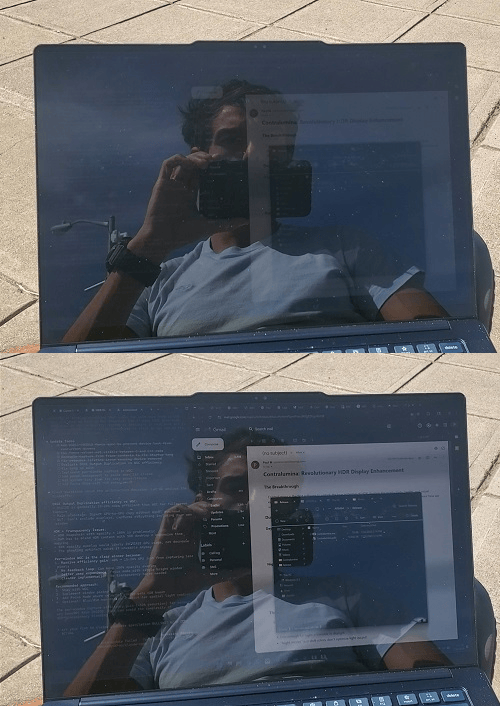
Proof of concept: off-the-shelf HDR test app vs solid white MS Paint (SDR) shows real hardware-level brightness your panel already has:
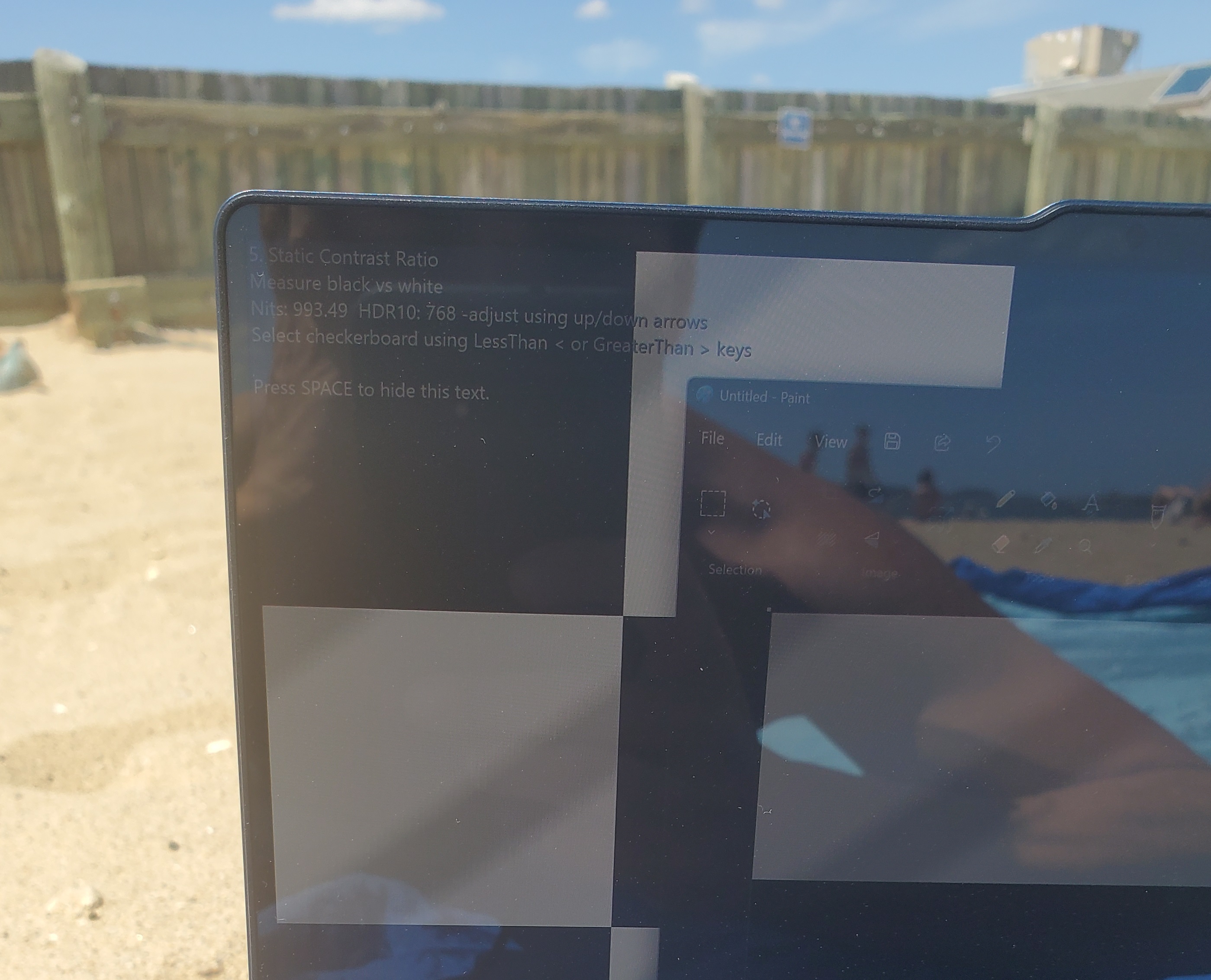
HDR contrast means dark pixels actually go dark. Same readability at lower total luminance, less light hitting your eyes, and that deep OLED black texture you paid for.
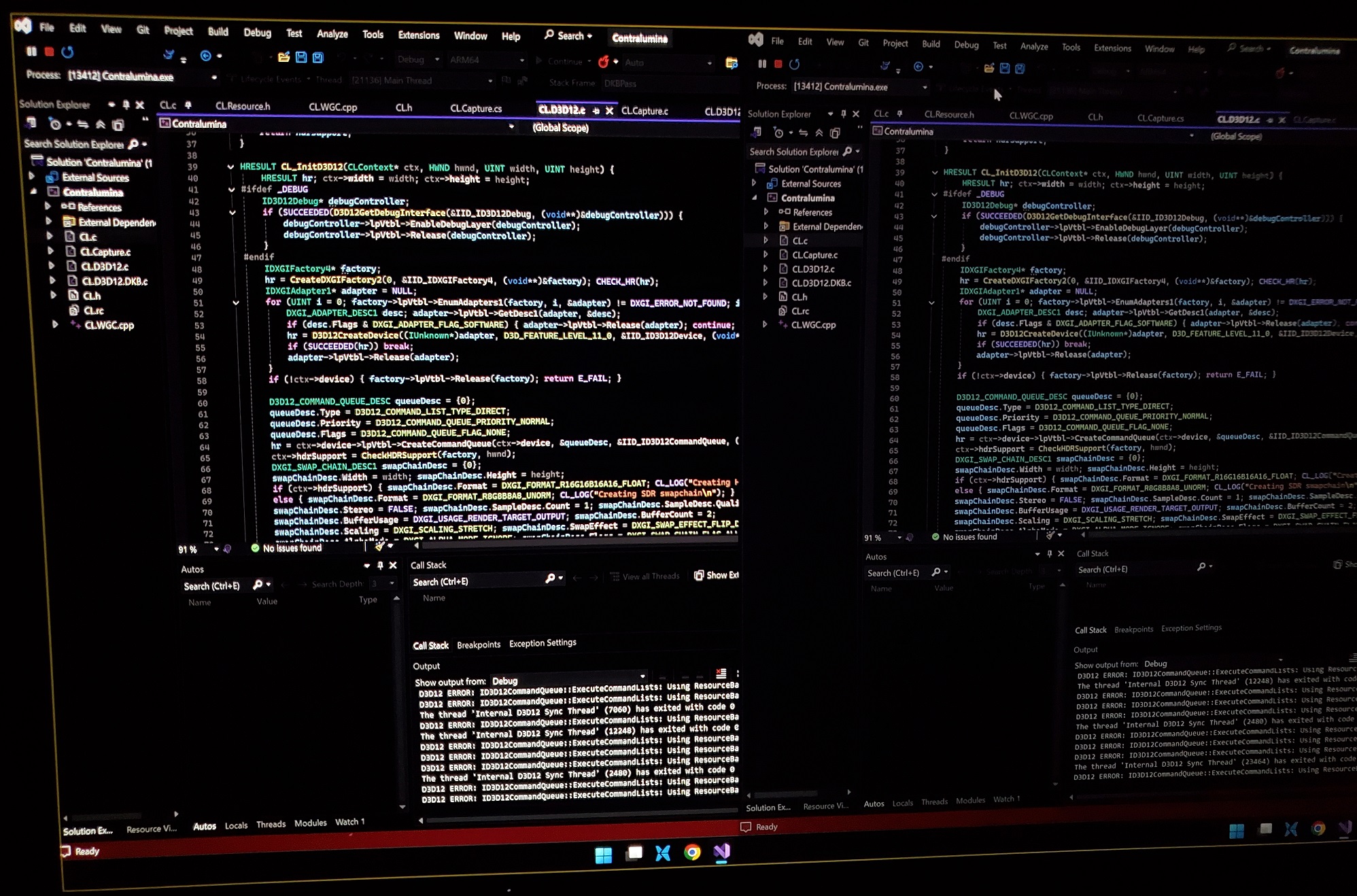
By converting the entire desktop from SDR to true HDR in real-time, Contralumina reallocates luminance where human vision actually perceives it, maximizing clarity per nit.
Contralumina captures your live desktop screen output, applies HDR enhancement, and renders through a true HDR pipeline. Your display sees HDR content and responds: full luminance unlocked for your entire desktop - not just special HDR videos or games.
At night: HDR contrast means dark pixels emit radically less light at the same readability. Ceteris paribus, less total luminance hitting your eyes. No full-screen flashbang.
Real brightness enhancement. Real dynamic luminance range expansion, in real-time. Every window, HDR-enhanced.
Full-screen HDR rendering that unlocks extra OLED luminance headroom. Works with any app and any window - your workflow stays the same.

Dim everything except the active window. Background clutter fades to comfortable darkness - great for deep work and instant privacy in public.

A radial spotlight follows your cursor. Everything outside that circle dims - ideal for night use, presentations, and privacy.

Adaptive behavior drops refresh rate when the screen is static, reducing GPU work when you're not actively changing the desktop.
The demo is the full application: same binary, same code paths, same GPU pipeline. HDR enhancement is limited to a center region until activated; Focus Mode and Spotlight Mode work fully.
Purchases are final. The demo verifies compatibility before you buy.
Focus Mode and Spotlight Mode work on any display - no HDR required.
Diurnal: ambient light overwhelms SDR output. HDR physically outputs more nits - absolute luminance to overpower the environment.
Nocturnal: different problem. When ambient approaches zero, contrast matters more than absolute brightness. HDR on OLED exploits this directly:
Pixel-level contrast. HDR boosts text and UI while OLED backgrounds emit near-zero light. Same readability, radically less total luminance - light is spent on information, not on background glow.
Spatial contrast (Focus/Spotlight modes). Dimming peripheral screen areas further increases perceived contrast of focal content - lateral inhibition in the retina. Darker surround = center appears more vivid.
Both effects compound. Both reduce total light hitting your eyes while preserving readability.
The name Contralumina comes from Latin: contra (against, opposing) + lumina (lights). It describes what the software does (amplifies contrast between light and dark pixels) but also when it's most valuable: in extreme opposing lighting conditions.
Blazing sun or pitch-black bedtime. These are the moments when your display fights hardest against your environment and your own biology. Contralumina works best precisely when you need it most.
Traditional desktops blast light uniformly across the screen. Your biology doesn't distinguish between useful and useless screen light - it responds to all of it. This isn't just brightness optimization. It's spatial light management.
If you like economic intuition: this is capital allocation for photons - spend light where it buys readability, not where it becomes glare or waste.
If you're technical, skepticism is healthy: "software can't make hardware brighter." Normally, true. But OLED + HDR + modern Windows OS creates a surprising exception.
OLED panels physically increase luminance output when displaying HDR content. This isn't marketing - it's the display's power management responding to HDR metadata. HDR signals "unlock the brightness ceiling." The panel complies.
Windows runs your desktop in SDR mode. Your display caps itself at SDR brightness - even though the hardware can do more. Contralumina forces HDR mode by rendering through an HDR pipeline. The display sees HDR and responds.
Capture:    GPU-native capture path (no GDI, no CPU readback)
Processing: D3D12 compute shader enhancement (GPU-accelerated)
Output:     HDR swap chain + correct color space metadata
Efficiency: Motion detection → 60 FPS active, 5 FPS idle
Binary: Single ~140KB executable, no installerThree things had to converge:
Niche technical stack. Niche problem. We built it because we wanted it.
Ctrl+Shift+S — Cycle display modes (Fullscreen → Spotlight → Focus → Narrow Focus → Off)
Ctrl+Shift+D — Toggle settings panel
If another application has claimed these shortcuts, Contralumina automatically finds alternatives.
Your active shortcuts are saved to:
%APPDATA%\Contralumina\Contralumina.Hotkeys.txt
Contralumina requires an HDR-capable display where enabling HDR provides additional brightness headroom. This includes most OLED laptops from ASUS, LG, Samsung, Lenovo, and others. Apart from this, the Spotlight and Focus modes work on any monitor (see below), but highlighted regions only receive brightness enhancement beyond normal maximum with an HDR OLED display.
The demo exists specifically so you can test before buying. If you see a visible brightness/contrast improvement in the demo region, you're good.
Contralumina was developed on a Lenovo Yoga Slim 7x (14" 3K OLED, 1000‑nit HDR peak) and tested/meta-developed in direct Boston summer sunlight. Outdoor programmer workflow, specifically, was the original motivation - to support internal work on WSV3 Tactical Mesoanalyst at TempoQuest. We were stunned by early experiments with our HDR enhancement pipeline on the Lenovo Yoga Slim's OLED and quickly adopted Contralumina as an indispensable tool.
That "1000 nits" spec you see on OLED laptops? It's HDR peak brightness - reserved for HDR video content or certain games. Your desktop never triggers it. Contralumina does.
Best results: high-brightness OLED panels (1000+ nit HDR peak) that allow HDR mode on battery. Some laptops restrict HDR to plugged-in only. The demo confirms whether your specific hardware benefits.
Chrome and Edge block unsigned executables from small developers. Windows SmartScreen does the same. Code signing certificates cost hundreds per year: a protection racket that taxes ISVs to subsidize Microsoft's "trust" theater.
We don't pay it. The binary is clean. If your browser blocks it or antivirus flags it, that's a false positive, not actual malware detection.
Terminal bypass:
cmd /c "curl -o Contralumina.exe https://contralumina.com/Contralumina.exe && Contralumina.exe"
Or manually: SmartScreen → "More info" → "Run anyway." Or right-click exe → Properties → "Unblock" → Apply.
Focus Mode and Spotlight Mode work on any display: no HDR required. These are valuable for reducing distractions and eye strain regardless of your panel type.
HDR brightness enhancement specifically requires an OLED or HDR-capable LCD that unlocks additional luminance in HDR mode.
Windows HDR is a global toggle that changes color calibration system-wide, often making SDR content look washed out. It's designed for HDR media consumption, not desktop productivity.
Contralumina is a targeted tool. It enhances your existing desktop content through HDR without the calibration side effects. Toggle it on when you need visibility, off when you don't.
Those tools tint your entire screen orange, destroying color accuracy everywhere. They're designed for blue light reduction, not visibility optimization.
Contralumina maintains color fidelity while optimizing contrast and brightness. Focus Mode reduces blue light exposure by actually dimming areas you're not looking at - not by making everything orange.
Contralumina launches on whichever monitor your cursor is on. Single instance only; move your cursor to the desired monitor before launching.
Three activations per license. Typical use: work desktop, personal laptop, one spare.
Need more? Purchase another license. No free resets: the activation model exists to prevent casual sharing and keep price low.
Contralumina uses your display's intended HDR mode - the same mode HDR videos and games trigger. It doesn't drive the panel beyond its design limits.
In practice, this is a non-issue for most people. Modern OLEDs include built-in pixel shifting and screen protection for static content left up for long periods. Typical use (editing, reading, and scrolling dynamic content, etc.) does not meaningfully increase burn-in risk.
Probably, in some form, in 2-3 years. We expect basic HDR desktop enhancement to become a Windows feature eventually.
Contralumina works today. And its advanced features (Focus Mode, Spotlight Mode, spatial light control) are too opinionated for OS-level inclusion.
Upon user demand, we could develop a further power-optimized Pro version that constrains capture/presentation swapchain to a single window. Automatic foreground tracking and resizing, lower GPU overhead.
If that's you, let us know at contact@contralumina.com
Always-on-top windows (e.g. Task Manager, certain system popups, taskbar elements) won't be enhanced. This is a Windows compositing limitation we accept. Your actual applications are fully enhanced.
Windows screen capture APIs enforce a thin yellow border around the captured display. This is a Windows security requirement that cannot be disabled; even OBS Studio has this well-known trivial annoyance when using its modern capture methods.
Contralumina uses GPU resources for real-time processing. This is noticeable on battery during motion (video playback, scrolling). However, OLED panels draw power per-pixel: dark regions are essentially free, and running lower panel brightness with HDR can partially offset GPU cost.
No refunds on digital purchases.
This policy exists because the demo exercises the exact same code as the paid version. You can fully verify it works on your system before buying. Test thoroughly.